MU Online Game System and Game Util Guide
The MasterMU Game System places event lists, invasion information, boss information, storage and character utilities in one compact menu. Open the three-bar icon, then select Game Utils or another available system without searching through multiple game windows.
System updates: New buttons, utilities and game systems may be added over time. The available options can change after server updates.
Game System Guide Contents
Open the Menu · Main Buttons · Game Util · Character Utilities · Request and Party · Personal Store · Safety
Step 1: Open the Game System Menu
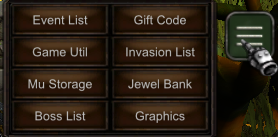
Locate the three horizontal bars, also known as the hamburger menu icon, in the game interface. Click it once to reveal the extra systems and click it again or press ESC to close the menu.
| Quick Tip | Information |
|---|
| Location | Look for the three-bar icon in the game interface. |
| Access | Single-click the icon to expand the menu. |
| Usage | Available during normal gameplay. |
| Closing | Click the icon again or press ESC. |
Main Game System Buttons
| Button | Purpose | Button | Purpose |
|---|
| Event List | Displays available event information. | Invasion List | Displays invasion information. |
| Boss List | Displays boss information. | MU Storage | Opens the MU Storage system. |
| Gift Code | Opens the Gift Code redemption window. | Jewel Bank | Opens Jewel deposit and withdrawal tools. |
| Graphics | Opens additional graphics settings. | Game Utils | Opens character utilities and shortcuts. |
Step 2: Open the Game Util Panel
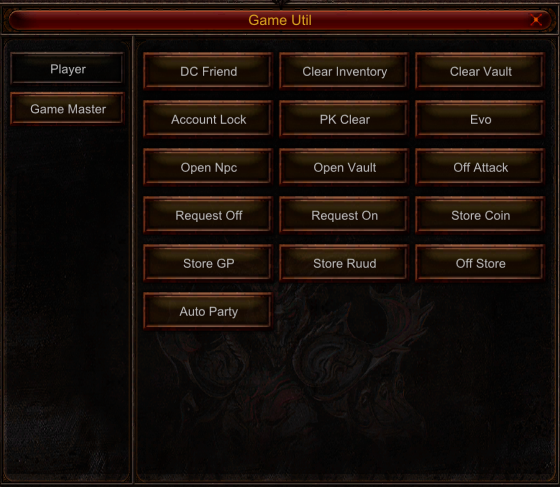
Select Game Utils from the expanded menu. The opened Game Util panel provides direct access to character management, vault, request, party and Personal Store functions.
Character and Account Utilities
| Game Util Button | Function |
|---|
| DC Friend | Opens the DC Friend function. |
| Clear Inventory | Clears items from the character inventory. |
| Clear Vault | Clears items from the selected vault. |
| Account Lock | Opens the account locking function. |
|
|
| PK Clear | Opens the function used to clear PK status. |
| Evo | Opens the character evolution function. |
| Open NPC | Opens the remote NPC function. |
| Open Vault | Opens the vault remotely. |
| Off Attack | Activates the offline attack or leveling function. |
Destructive actions: Use Clear Inventory and Clear Vault only after checking every item and the selected vault. These functions can remove stored items; do not confirm them by mistake.
| Button | Function |
|---|
| Request Off | Disables incoming character requests. |
| Request On | Enables incoming character requests. |
| Auto Party | Opens or enables automatic Party management. |
| Button | Store Currency or Function |
|---|
| Store Coin | Opens a Personal Store using WCoinC prices. |
| Store GP | Opens a Personal Store using Goblin Points prices. |
| Store Ruud | Opens a Personal Store using Ruud prices. |
| Off Store | Activates the Offline Personal Store after the store is configured. |
Game System Safety and Usage Tips
| Situation | Recommendation |
|---|
| First Use | Review every button before activating account, inventory or vault actions. |
| Currency Store | Confirm whether the store uses WCoinC, Goblin Points or Ruud before listing items. |
| Account Security | Understand the Account Lock settings before enabling them. |
| After an Update | Reopen the menu and check whether new systems or buttons were added. |
Game System Quick Reference
Click the three-bar icon → choose the required game system → open Game Util for character, vault, request, party and Personal Store tools → verify any destructive or currency-related action before confirming → press ESC to close the menu.